
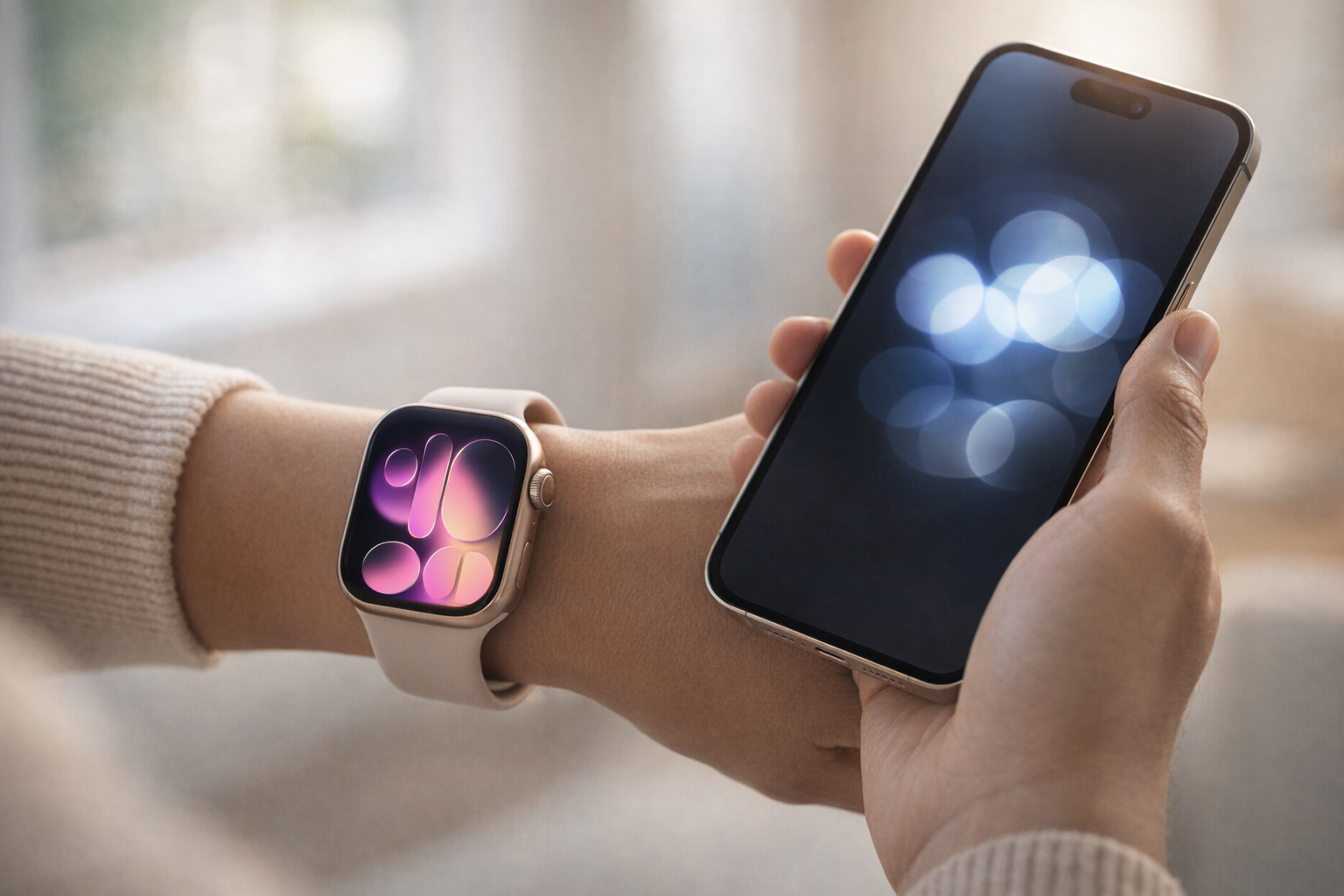
An Apple Watch that refuses to pair, or one that keeps flashing the red disconnect icon an hour into your day, feels like a dead end. It usually isn't. These are two different problems with two different fix flows, and the vast majority resolve in a few minutes without a trip to the Apple Store.
The distinction matters. If you're setting up a watch for the first time and the pairing animation spins forever or you see "Pairing Unsuccessful," that's a pairing problem. If your watch was working fine and now shows a red X, stops delivering notifications, or won't sync, that's a connection problem. Start with the fast checklist below, then jump to the section that matches your symptom.
Start Here: The Fast-Fix Checklist
Before you touch any deep settings, run through these five checks. Each fixes a large share of both pairing and connection failures on its own.
- Bluetooth is on. On your iPhone, open Settings > Bluetooth and confirm the toggle is green. The watch relies on Bluetooth for its primary link.
- Both devices are in range. Keep the watch and iPhone within a few feet of each other during pairing and while troubleshooting.
- Airplane Mode is off on both the iPhone and the watch. On the watch, press the side button to open Control Center and check that the airplane icon is not highlighted.
- Restart both devices. Power the iPhone and the watch fully off, then back on. This clears the temporary glitches behind most connection drops.
- Software is up to date. On the iPhone, go to Settings > General > Software Update. For the watch, open the Watch app > General > Software Update. A watchOS 26 watch and an iOS 26 iPhone need to be on compatible versions to talk to each other reliably.
If the checklist doesn't do it, work through the section that matches your situation.
Apple Watch Won't Pair
Pairing failures happen during initial setup or after a factory reset. Try these fixes in order, moving to the next only if the previous one fails.
1. Force restart both devices
A hung pairing session is the most common culprit. Force restart clears it.
- Apple Watch: Press and hold the side button and the Digital Crown at the same time for at least 10 seconds, until the Apple logo appears. This is the correct combination on every model, including the Ultra.
- iPhone: Press and quickly release Volume Up, press and quickly release Volume Down, then press and hold the side button until the Apple logo appears.
Once both are back on, open the Watch app and try pairing again. For a full walkthrough of every restart level, see how to reset an Apple Watch.
2. Toggle Bluetooth and Wi-Fi, then move the devices close
Turn Bluetooth off and back on in iPhone Settings > Bluetooth. Do the same for Wi-Fi in Settings > Wi-Fi. Pairing activates the watch over your network, so a stalled Wi-Fi connection can quietly block the whole process. Set the watch on the table right next to the phone and try again.
3. Reset the pairing animation on the watch
If the pairing animation sits on the watch screen for several minutes with no progress, reset it directly. Press and hold the Digital Crown while the watch is in pairing mode, then tap Reset when it appears. The watch wipes its half-finished setup and returns to the "Start Pairing" screen, ready for a clean attempt. This reset does not remove Activation Lock, so if the watch was already signed in to an Apple Account, you'll still need that account's password to pair it again.
4. Pair manually if the camera won't cooperate
Normal pairing asks you to hold the iPhone camera over the swirling animation on the watch. If the camera won't focus, the animation won't appear, or the phone can't read it, tap Pair Apple Watch Manually on the iPhone. Follow the prompts to enter the pairing code the watch displays. This sidesteps the camera entirely.
5. Confirm both devices are updated
Pairing frequently fails when the iPhone and watch are on mismatched software. Update the iPhone first (Settings > General > Software Update), then update the watch if it's already partially paired, or complete the update as part of setup when prompted. Do not let either device run low on battery mid-update, and never force restart during an update.
6. Erase the watch and pair fresh
If the watch was previously paired to another phone, or a reset left it in a strange state, wipe it and start over. On the watch, open Settings > General > Reset > Erase All Content and Settings, enter your passcode, and confirm. When it reboots to the language screen, bring it next to your iPhone and begin pairing from the Watch app.
7. Handle sign-in and Activation Lock
If setup reaches the point where it asks for an Apple Account and rejects your entry, the watch is likely locked to a previous owner's account through Activation Lock. You'll need the Apple Account email and password that were used to set up the watch originally. There is no workaround for this by design. If you bought the watch secondhand, the seller must remove it from their account. If it's your own account and you've forgotten the password, reset it in your Apple Account settings before continuing setup.
Apple Watch Keeps Disconnecting or Won't Sync
If the watch already paired but now drops the connection, loses notifications, or stops syncing new data, work through these steps.
1. Check the connection dot in Control Center
Press the side button on the watch to open Control Center and look at the status icon at the top. A green iPhone icon means the watch is connected. A red iPhone with an X, or a red disconnect icon, means it has lost the link. An airplane icon tells you Airplane Mode is on. This tells you instantly whether you have a connection problem or something else.
2. Toggle Airplane Mode to reset the radios
The fastest reset for a dropped connection: on the watch, open Control Center, tap the airplane icon to turn Airplane Mode on, wait a few seconds, then tap it off again. This cycles Bluetooth and Wi-Fi and forces the watch to re-establish its link with the phone. This alone fixes the majority of "sudden disconnect" cases.
3. Re-pair the Bluetooth connection from the iPhone
On the iPhone, open Settings > Bluetooth, turn the toggle off, wait ten seconds, and turn it back on. When the watch reappears in the device list, tap it to reconnect. Keep the two devices close – roughly 30 feet apart in open space, and less through walls. Beyond Bluetooth range, the watch drops to Wi-Fi, and if it can't reach a known network it goes fully offline.
4. Make sure the Wi-Fi networks match
When Bluetooth range is exceeded, the watch tries to reach the iPhone over shared Wi-Fi. If the watch is stuck on a network the phone isn't using, handoff breaks. On the watch, open Settings > Wi-Fi and forget any stale or captive networks. Then, if the problem persists, turn the watch off, forget the current network in iPhone Settings > Wi-Fi, rejoin it on the phone, and turn the watch back on so both land on the same network.
5. Reset Sync Data
If notifications, contacts, calendars, or health data won't sync even though the connection dot is green, the sync database may be corrupted. Fix it without unpairing: on the iPhone, open the Watch app > My Watch > General > Reset > Reset Sync Data. This rebuilds the contacts and calendar sync between the two devices. It's non-destructive to the rest of the watch and takes a minute or two to complete in the background.
6. Reset network settings on the iPhone
Persistent Bluetooth and Wi-Fi drops often trace back to corrupted network profiles on the phone. On the iPhone, go to Settings > General > Transfer or Reset iPhone > Reset > Reset Network Settings. This clears saved Wi-Fi passwords and Bluetooth pairings, so you'll re-enter Wi-Fi credentials afterward, but it resolves stubborn connectivity faults. The watch reconnects automatically once the phone is back on the network.
7. Check cellular activation on GPS + Cellular models
On a cellular watch that won't connect away from your phone, the cellular plan may have dropped. Open the Watch app > Cellular and confirm your plan is active. If it shows an error or missing plan, contact your carrier to re-provision the eSIM. Note that cellular only helps when the watch is out of Bluetooth and Wi-Fi range of your phone; it isn't a fix for the watch failing to connect while sitting next to it.
Model-Specific Notes
The force restart combination is identical across the lineup: side button plus Digital Crown, held for at least 10 seconds until the Apple logo appears. This holds for the Apple Watch Series 11, the Apple Watch SE 3, Series 9 and 10, and both Ultra generations.
The one thing worth calling out: on the Ultra, the orange Action button does nothing for restarting. It's a customizable shortcut, not a power control. Use the side button and Digital Crown as on every other model. The steps in this guide reflect a current watch running watchOS 26; a few on-device gestures shifted position on much older software, but the paths above are what you'll see today.
When to Unpair and Re-Pair as a Last Resort
If nothing above works, unpairing and re-pairing rebuilds the entire relationship between the two devices. This sounds drastic, but it's safe: your iPhone automatically creates a fresh backup of the watch before erasing it, and you restore from that backup during the next setup, so your settings, watch faces, and health data come back.
To do it right:
- Keep the watch and iPhone close together.
- On the iPhone, open the Watch app > My Watch > All Watches.
- Tap the info (i) button next to your watch, then tap Unpair Apple Watch.
- On a cellular model, choose to keep your plan (you're re-pairing to the same phone) rather than remove it.
- Enter your Apple Account password when prompted. This disables Activation Lock and lets the watch pair again.
- Wait for the watch to erase and reboot, then pair it again and choose Restore from Backup.
Unpairing through the Watch app is what triggers the automatic backup and clears Activation Lock in one step, so it's a safer route than erasing the watch on its own.
When It's a Hardware or Account Problem
A few failures aren't yours to fix. If the watch won't force restart at all, won't charge, or the screen stays black, you may have a hardware fault. If pairing keeps demanding an Apple Account you don't own, the watch is Activation Locked to a previous owner and only they can release it. And if you've reset the watch, updated both devices, and re-paired, yet the connection still collapses within minutes, that points to a possible Bluetooth or Wi-Fi antenna fault.
At that point, contact Apple Support or book a Genius Bar appointment. Bring the watch, the paired iPhone, and, if account ownership is in question, proof of purchase. If you're weighing a replacement instead of a repair, our guide to the best smartwatches for iPhone covers the current options.
The Takeaway
Pairing failures almost always come down to a stalled setup session or mismatched software, and a force restart plus an update clears the great majority. Connection drops are nearly always Bluetooth or Wi-Fi handoff hiccups, and the Airplane Mode toggle in Control Center is the single fastest cure. Escalate one step at a time, save unpairing for last, and reach for Apple only when the hardware or an account lock leaves you no other move.