
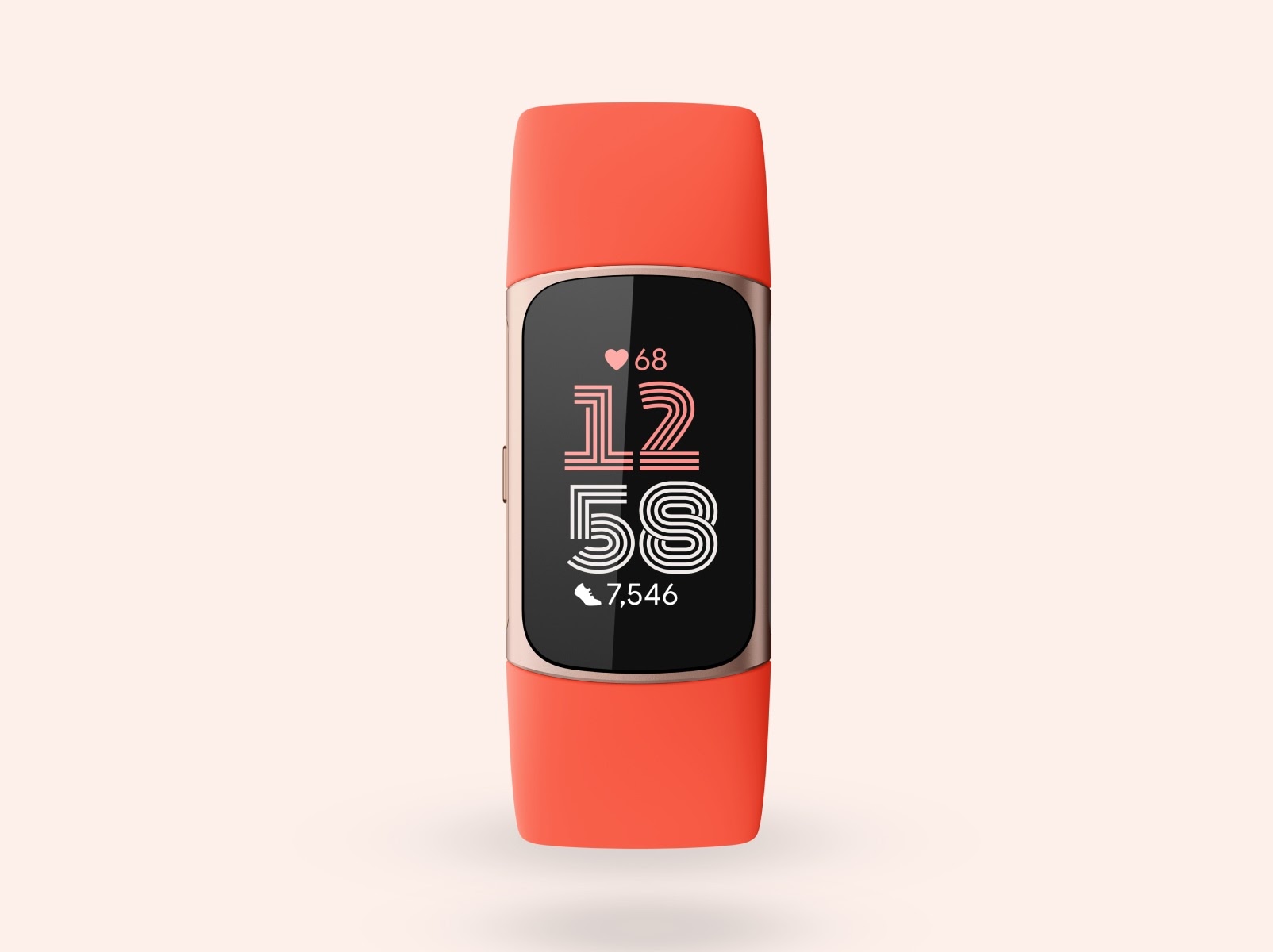
You open the Fitbit app expecting to see last night's sleep score, and instead you're staring at data from two days ago. The sync spinner animates endlessly, your step count is frozen, and nothing you tap seems to make a difference. This is the single most common Fitbit complaint, and it affects every device in the lineup – from the Charge 6 to the Inspire 3 to the Pixel Watch running Fitbit integration.
This guide covers every current and recent Fitbit device: Charge 6, Charge 5, Versa 4, Versa 3, Sense 2, Sense, Inspire 3, Inspire 2, Luxe, Ace LTE, Ace 3, and all four generations of Pixel Watch. Rather than walking through a generic checklist, it's organized by why sync fails – so you can jump straight to the section that matches your problem and fix it.
Why Fitbit Sync Fails: The Five Root Causes
Every Fitbit sync failure falls into one of five categories. Identifying which one applies to your situation saves time and prevents you from cycling through fixes that don't address the actual problem.
1. Bluetooth and connection issues. The most common culprit. Your Fitbit communicates with your phone over Bluetooth Low Energy (BLE), and anything that disrupts that connection – distance, interference, stale pairings, competing devices – stops sync cold.
2. App and firmware problems. An outdated Fitbit app, a pending firmware update on your device, or corrupted app cache data can all prevent successful data transfer. This is especially common after Google pushes a major update.
3. Phone settings blocking background activity. Android and iOS both restrict background processes to save battery. If your phone's power management kills the Fitbit app while the screen is off, background sync stops entirely.
4. Account and migration issues. The ongoing transition from legacy Fitbit accounts to Google accounts has introduced a wave of sync problems. Users who haven't migrated – or who experienced errors during migration – may find their devices unable to sync until the account situation is resolved.
5. Server-side outages. Sometimes the problem isn't on your end at all. Fitbit's servers go down occasionally, and when they do, no amount of restarting or re-pairing will help. In July 2025, a major Fitbit outage left devices worldwide unable to sync for hours – and users who followed the official troubleshooting advice to reinstall the app found themselves locked out of their accounts entirely.
Universal Quick Fixes
These four steps resolve the majority of sync failures regardless of which Fitbit device you own or which phone you're using. Try them in order before moving to deeper troubleshooting.
1. Force close the Fitbit app and reopen it. On iPhone, swipe up from the bottom and swipe the Fitbit app card away. On Android, go to Settings > Apps > Fitbit > Force Stop. Wait five seconds, reopen the app, and pull down on the dashboard to trigger a manual sync.
2. Toggle Bluetooth off and back on. Go to your phone's Bluetooth settings, switch Bluetooth off, wait at least 10 seconds, then switch it back on. This clears stale BLE connections that accumulate over time.
3. Restart your phone. A full restart clears memory leaks, resets Bluetooth stacks, and re-initializes background processes. It fixes more sync problems than any other single step.
4. Restart your Fitbit device. Restart procedures vary by model – see the Device-Specific Restart and Reset Instructions section below for your exact device. Once your Fitbit reboots, open the app and sync again.
If all four of those steps fail, the problem is deeper than a temporary glitch. Read on.
Bluetooth and Connection Fixes
Bluetooth issues account for roughly half of all Fitbit sync failures. These fixes address the full range of BLE problems.
Forget and Re-pair Your Device
This is the single most effective fix for persistent sync failures, especially those that started after a firmware or app update. It forces a completely fresh Bluetooth handshake.
- Open the Fitbit app, tap your profile icon, select your device, and tap Remove This Device.
- Go to your phone's Bluetooth settings. Find any entries for your Fitbit (it may appear by model name or simply as "Fitbit"). On iPhone, tap the info icon and select Forget This Device. On Android, tap the gear icon and select Unpair.
- Restart your phone.
- Open the Fitbit app, tap Set Up a Device, choose your model, and follow the pairing prompts.
Your historical data is stored in your Fitbit account in the cloud. Removing and re-pairing does not delete your activity history, sleep logs, or health metrics.
Eliminate Multi-Device Conflicts
Your Fitbit can only maintain an active Bluetooth sync connection with one phone or tablet at a time. If you've logged into the Fitbit app on multiple devices – a phone and a tablet, a personal phone and a work phone – the sync connection will bounce between them unpredictably or fail entirely.
Uninstall the Fitbit app from any device you don't actively use for syncing. If you must keep it installed on multiple devices, make sure only one has Bluetooth enabled and is within range of your Fitbit at any given time.
This also applies to households with multiple Fitbit users. If two people in the same household are syncing different Fitbits to phones that are near each other, interference is rare but possible – especially with older phone models that handle BLE connections less gracefully.
Reduce Bluetooth Congestion
A phone paired with numerous Bluetooth devices – earbuds, speakers, smartwatches, car systems, game controllers – has a harder time maintaining a stable BLE connection to your Fitbit. You don't need to unpair everything, but if sync is unreliable, temporarily disconnect other Bluetooth accessories to see if stability improves. Phones with older Bluetooth chipsets (Bluetooth 4.2 or earlier) are particularly susceptible.
Check Physical Distance
Fitbit devices sync over Bluetooth Low Energy, which has a practical range of about 33 feet (10 meters) with no obstructions. Walls, floors, and other obstacles reduce that range significantly. During troubleshooting, keep your Fitbit and phone within arm's reach.
App and Firmware Fixes
Update the Fitbit App
Open the App Store (iPhone) or Google Play Store (Android), search for Fitbit, and install any pending updates. Google frequently pushes updates that fix sync bugs introduced by earlier releases. Running an outdated app version is one of the most common – and most easily fixable – causes of sync failure.
Update Your Device Firmware
Pending firmware updates can block normal sync behavior. Open the Fitbit app, tap your profile icon, select your device, and look for an available update. Keep your Fitbit on its charger and within Bluetooth range of your phone during the update. Firmware updates can take up to 45 minutes and the device will restart automatically when finished.
Do not interrupt a firmware update by removing your device from the charger or walking away from your phone. An interrupted update can leave your device in a partially updated state that requires a factory reset to recover.
Clear the Fitbit App Cache (Android Only)
Corrupted cache data can prevent the app from establishing a sync connection. Go to Settings > Apps > Fitbit > Storage > Clear Cache. Do not tap "Clear Data" – that deletes your login credentials and app settings. After clearing the cache, reopen the app and attempt a sync.
Reinstall the Fitbit App
If cache clearing didn't help, or you're on iPhone where cache clearing isn't available as a standalone option, uninstall the Fitbit app entirely. Restart your phone, then reinstall the app from the App Store or Play Store. Sign in, re-pair your device, and sync.
This nuclear option clears every piece of locally stored app data, including corrupted Bluetooth pairing profiles that survive a simple cache clear.
Android-Specific Fixes
Android's aggressive battery management is the leading cause of Fitbit sync failures on the platform. If your Fitbit syncs when you manually open the app but fails to sync in the background, these fixes address the problem directly.
Disable Battery Optimization for Fitbit
Go to Settings > Apps > Fitbit > Battery and select Unrestricted. This prevents Android from killing the Fitbit app's background processes to save power.
Manufacturer-specific battery management adds another layer of complexity: - Samsung (One UI): Go to Settings > Battery > Background Usage Limits and remove Fitbit from both the "Sleeping apps" and "Deep sleeping apps" lists. - Xiaomi (MIUI/HyperOS): Go to Settings > Apps > Manage Apps > Fitbit > Battery Saver and select "No restrictions." Also check Settings > Battery > Battery Saver and make sure the ultra battery saver isn't enabled. - OnePlus (OxygenOS): Go to Settings > Battery > Battery Optimization > Fitbit and select "Don't optimize." - Huawei (EMUI): Go to Settings > Battery > App Launch, find Fitbit, toggle off "Manage automatically," and enable all three manual toggles (Auto-launch, Secondary launch, Run in background).
Grant Location and Nearby Devices Permissions
On Android 12 and later, the Fitbit app requires Nearby Devices permission to scan for Bluetooth accessories. Go to Settings > Apps > Fitbit > Permissions and grant it. On Android 11 and earlier, Location permission serves this purpose instead – set it to Allow all the time.
Even on Android 12+, some manufacturer skins (Samsung One UI, Xiaomi MIUI) still require Location permission for Bluetooth scanning to work properly. If sync fails after granting only Nearby Devices, grant Location access as well.
Enable Background Data Usage
Go to Settings > Apps > Fitbit > Mobile Data & Wi-Fi and toggle on Allow background data usage and Unrestricted data usage. Without these, the Fitbit app cannot upload synced data when it isn't actively on screen.
Turn Off Battery Saver Mode
Android's system-wide Battery Saver mode restricts background data, location services, and Bluetooth scanning – all of which Fitbit requires. Disable Battery Saver while troubleshooting: Settings > Battery > Battery Saver > Turn off.
iPhone-Specific Fixes
iOS handles background app behavior differently than Android, but it can still quietly break Fitbit syncing without displaying any error messages.
Enable Background App Refresh
Go to Settings > General > Background App Refresh. First, make sure Background App Refresh is enabled globally (set to Wi-Fi or Wi-Fi & Cellular Data – not Off). Then scroll down and confirm the toggle is on for Fitbit specifically. Without Background App Refresh, the Fitbit app cannot maintain a persistent connection to your device when the app is in the background.
Set Location to "Always"
Go to Settings > Privacy & Security > Location Services > Fitbit and set access to Always. The "While Using the App" setting technically allows basic syncing, but "Always" is required for reliable background sync and Connected GPS features. During troubleshooting, set it to "Always" to eliminate location permissions as a variable.
Turn Off Low Power Mode
Low Power Mode (indicated by the yellow battery icon) restricts all background activity across every app, including Fitbit. Go to Settings > Battery and toggle it off. Even if your battery is low, disable Low Power Mode long enough to complete a sync, then re-enable it.
Disable Focus Modes That Block Fitbit
If you use Focus modes (Do Not Disturb, Work, Sleep, or custom modes), check that the Fitbit app isn't being silenced. Go to Settings > Focus, select each active mode, and make sure Fitbit is listed under allowed apps. Some Focus configurations block background Bluetooth communication.
Re-check Permissions After iOS Updates
Major iOS updates have a documented habit of resetting app permissions or altering Bluetooth behavior. If your Fitbit stopped syncing immediately after an iOS update, walk through Background App Refresh, Location Services, and Bluetooth permissions again. This catches problems that affect even experienced users.
Google Account and Migration Issues
Google is requiring all Fitbit users to migrate from legacy Fitbit accounts to Google accounts. The current deadline is May 19, 2026. After that date, Fitbit accounts will stop working entirely, and unmigrated users will lose the ability to sync their devices. Historical data for users who don't migrate will be deleted on July 15, 2026.
How to Check Your Account Status
Open the Fitbit app. If you see a banner prompting you to move your account, you're still on a legacy Fitbit account. Tap the banner and follow the steps – the migration process takes about five minutes. If you don't see a banner, your account has already been migrated.
Common Migration Sync Problems
Sync stopped after migration: Some users report that syncing breaks immediately after completing the account migration. The fix is to remove your Fitbit device from the app and re-pair it. The migration changes your account's authentication tokens, and re-pairing forces the device to authenticate with the new credentials.
"Google Account not compatible" error: Not every Google account works with Fitbit. Google Workspace accounts (business and education accounts) and child accounts may be incompatible. If you receive this error, create a personal Google account and use that for the migration instead.
Lost data after migration: If your historical data appears missing after migration, wait 24 to 48 hours. Large datasets can take time to transfer between Fitbit's legacy servers and Google's infrastructure. If data is still missing after 48 hours, contact support – some users have experienced incomplete migrations that required manual intervention.
Syncing to the wrong account: If you have multiple Google accounts on your phone and accidentally migrated to the wrong one, you'll need to contact Fitbit support to reassign your device. There is no self-service option to switch Google accounts after migration.
Third-Party App Sync Breaks After Migration
Apps that previously synced with Fitbit – Strava, MyFitnessPal, Noom, and others – may lose their connection during the account migration. After migrating, open the Fitbit app, go to your profile, and reconnect any third-party apps under the Connected Apps section. Each app will require you to re-authorize the connection with your new Google credentials.
Pixel Watch Fitbit Sync Issues
The Pixel Watch line (1, 2, 3, and 4) uses Fitbit's health tracking platform but handles syncing differently than standalone Fitbit devices. Pixel Watch syncs health data through a combination of the Fitbit app and Google's Wear OS services, creating unique failure points.
Pixel Watch Syncs Health Data Differently
Unlike standalone Fitbit devices that sync directly to the Fitbit app over Bluetooth, Pixel Watch routes health data through Wear OS services first. This means sync failures can originate from the Fitbit app, the Wear OS companion app, or the watch's own system services. Troubleshooting requires checking all three.
Basic Pixel Watch Sync Troubleshooting
- Open the Fitbit app on your phone and pull down to trigger a manual sync.
- Open the Google Pixel Watch app on your phone and verify the watch shows as connected.
- On the watch itself, go to Settings > Apps > Fitbit and check for pending updates. Updating Fitbit on the watch has resolved sync issues for many Pixel Watch owners.
- Restart the watch: press and hold the crown for 10 seconds until the Google logo appears.
March 2026 Step Count Bug
A firmware update rolled out in March 2026 caused widespread issues with Fitbit health tracking on Pixel Watch. Affected users saw wildly inflated step counts – some reported double or triple their actual steps – along with missing skin temperature and SpO2 readings. Google has not confirmed the exact root cause – the firmware update, server-side components, or both may be responsible. Check the Fitbit Status Dashboard at status.fitbit.com for updates, and avoid factory resetting your watch over this issue – it won't help, and you'll lose your watch faces and app configurations.
Pixel Watch 1 End-of-Life Considerations
The original Pixel Watch reached end of support in late 2025. While Fitbit integration still functions, Google is no longer issuing firmware updates for this model. If you're experiencing sync issues on a Pixel Watch 1 that standard troubleshooting doesn't resolve, the device may have received its last compatible Fitbit update. Our Pixel Watch 4 review covers the current generation if you're considering an upgrade.
Pixel Watch and Standalone Fitbit Conflicts
Running a Pixel Watch and a standalone Fitbit device (like a Charge 6 or Inspire 3) on the same Google account creates data conflicts. Both devices attempt to log steps, heart rate, and sleep simultaneously, and the Fitbit app's deduplication doesn't always handle this cleanly. If you're using both a Pixel Watch and a Fitbit tracker, designate one as your primary device in the Fitbit app and wear only one at a time to avoid sync collisions and duplicate data.
Device-Specific Restart and Reset Instructions
Every sync troubleshooting process eventually requires restarting or resetting the device. Here's the exact procedure for every current and recent Fitbit model.
Charge 6
Restart: Swipe down from the clock face, tap Settings, scroll to Restart Device. If the screen is unresponsive, connect to the charging cable and press the button on the flat end of the cable three times within eight seconds, pausing about one second between each press. Wait for the Fitbit logo. For deeper Charge 6 sync troubleshooting, see our dedicated Charge 6 sync fix guide.
Factory reset: Settings > Device Info > Clear User Data.
Charge 5
Restart: Connect to the charging cable and press the button on the cable three times within eight seconds, with each press lasting about one second. Wait 10 seconds for the Fitbit logo.
Factory reset: Settings > Device Info > Clear User Data.
Versa 4
Restart: Press and hold the side button for 10 seconds until the Fitbit logo appears. Release.
Factory reset: Swipe down from the clock face, tap Settings > About Versa 4 > Factory Reset.
Versa 3
Restart: Press and hold the side button for 10 seconds until the Fitbit logo appears. Release.
Factory reset: Swipe down, tap Settings > About Versa 3 > Factory Reset.
Sense 2
Restart: Press and hold the side button for 10 seconds until the Fitbit logo appears. Release.
Factory reset: Settings > About Sense 2 > Factory Reset.
Sense
Restart: Press and hold the side button for 10 seconds until the Fitbit logo appears. Release.
Factory reset: Settings > About Sense > Factory Reset.
Inspire 3
Restart: Swipe to open the Settings menu on the device, then tap Restart Device. If the screen is unresponsive, connect to the charging cable and hold the buttons on both sides until the Fitbit logo appears.
Factory reset: Settings > Device Info > Clear User Data.
Inspire 2
Restart: Connect to the charging cable and press and hold the button on the device for 5 seconds. Release when you see the Fitbit logo and feel a vibration.
Factory reset: Settings > Clear User Data.
Luxe
Restart: Connect to the charging cable and press the button on the cable three times within eight seconds, pausing one second between each press. Wait for the Fitbit logo.
Factory reset: Settings > Device Info > Clear User Data.
Ace LTE
Restart: Press and hold the top button until the restart option appears, or swipe down and tap Settings > Restart.
Factory reset: On the watch, go to Settings > System > Disconnect & Reset. Alternatively, in the parent's Fitbit app, open the child's card, tap Settings > Device Control > Reset Fitbit Ace LTE.
Ace 3
Restart: Connect to the charging cable and press the button on the cable three times within eight seconds.
Factory reset: Connect to the charging cable, open Settings on the device, tap Clear User Data, then press and hold the screen for three seconds when prompted. The device will vibrate to confirm.
When Nothing Works: Hardware Failure Signs
Software troubleshooting has limits. If you've exhausted every fix above, the problem may be physical. These signs point to a hardware failure rather than a software glitch:
- The device never appears in Bluetooth settings on any phone, even after a factory reset. This indicates a failed Bluetooth radio.
- Sync briefly works after a factory reset but fails again within hours. Intermittent Bluetooth hardware failures create this pattern – the reset temporarily clears the fault state, but it returns.
- The device spontaneously restarts, shows a black screen, or won't hold a charge. These symptoms often accompany Bluetooth failures because they indicate broader system board problems.
- Multiple phones fail to connect to the same device. If your Fitbit won't sync with any phone – not just yours – the issue is definitively on the device side.
- Visible physical damage. A cracked screen, corroded charging contacts, or water damage indicators all suggest hardware problems that no software fix will address.
How to Contact Google/Fitbit Support
If troubleshooting confirms a hardware problem – or if you've reached a dead end with software fixes – contact support for warranty service or replacement options.
Through the Fitbit app: Open the app, tap your profile icon, scroll down, and tap Help. Select your issue category and follow the prompts to reach a support agent.
Through the web: Visit the Google Fitbit Help Center and use the contact options at the bottom of any support article.
Warranty coverage: All current Fitbit devices carry a one-year limited warranty from the original purchase date. The Pixel Watch carries a one-year limited warranty in the US and Canada, and two years in the EU and UK. Have your purchase receipt or order confirmation ready – support will ask for proof of purchase date.
What to expect: Google typically offers a replacement device (not a repair) for hardware defects within warranty. Out-of-warranty devices are not eligible for free replacement, but support may offer a discount on a new device.
Preventing Future Sync Problems
Once sync is working again, these maintenance habits keep it reliable across every Fitbit device and Pixel Watch.
Audit phone settings after OS updates. Both Android and iOS updates can reset battery optimization, background app refresh, and location permissions without warning. After every major phone update, verify that Fitbit still has unrestricted background access. This single habit prevents more sync failures than anything else on this list.
Complete the Google account migration before the deadline. If you're still on a legacy Fitbit account, migrate now. After May 19, 2026, unmigrated devices will stop syncing entirely, and your historical data will be queued for deletion on July 15, 2026. The migration takes five minutes and prevents a far more disruptive forced transition later.
Keep everything updated. Enable automatic updates for the Fitbit app on your phone. Check for device firmware updates in the Fitbit app at least monthly. Most sync-breaking bugs are patched within weeks of being reported.
Sync manually once a day. Open the Fitbit app and pull down on the dashboard. Background sync is convenient when it works, but phone settings and OS updates can silently disable it. A daily manual sync catches problems early before you lose days of data.
Check the Fitbit Status Dashboard before troubleshooting. Visit status.fitbit.com before spending 30 minutes restarting and re-pairing devices. If Fitbit's servers are down, nothing you do on your end will help – and aggressive troubleshooting during an outage (especially reinstalling the app) can create new problems on top of the original one.
Restart your Fitbit weekly. A quick restart clears temporary memory issues that interfere with Bluetooth communication. It takes 15 seconds and prevents the kind of slow degradation that leads to sudden sync failures.
Stick to one phone. Every Fitbit device supports only one active phone connection. Switching between phones creates pairing conflicts that lead to persistent sync failures. Pick one phone and stay on it.
Don't let your battery fully die. A completely drained Fitbit may require re-pairing with your phone after recharging. Charge your device before it drops below 10%.
Fitbit sync problems are genuinely frustrating, but they're almost always fixable. The tracker itself rarely fails – it's the chain of software, permissions, and cloud services between the device and your account that breaks down. Work through the fixes above systematically, starting with the section that matches your root cause, and your data will be flowing again. If you're evaluating whether to stick with Fitbit or switch platforms, our best fitness trackers roundup covers the current top picks across every price point and use case.