
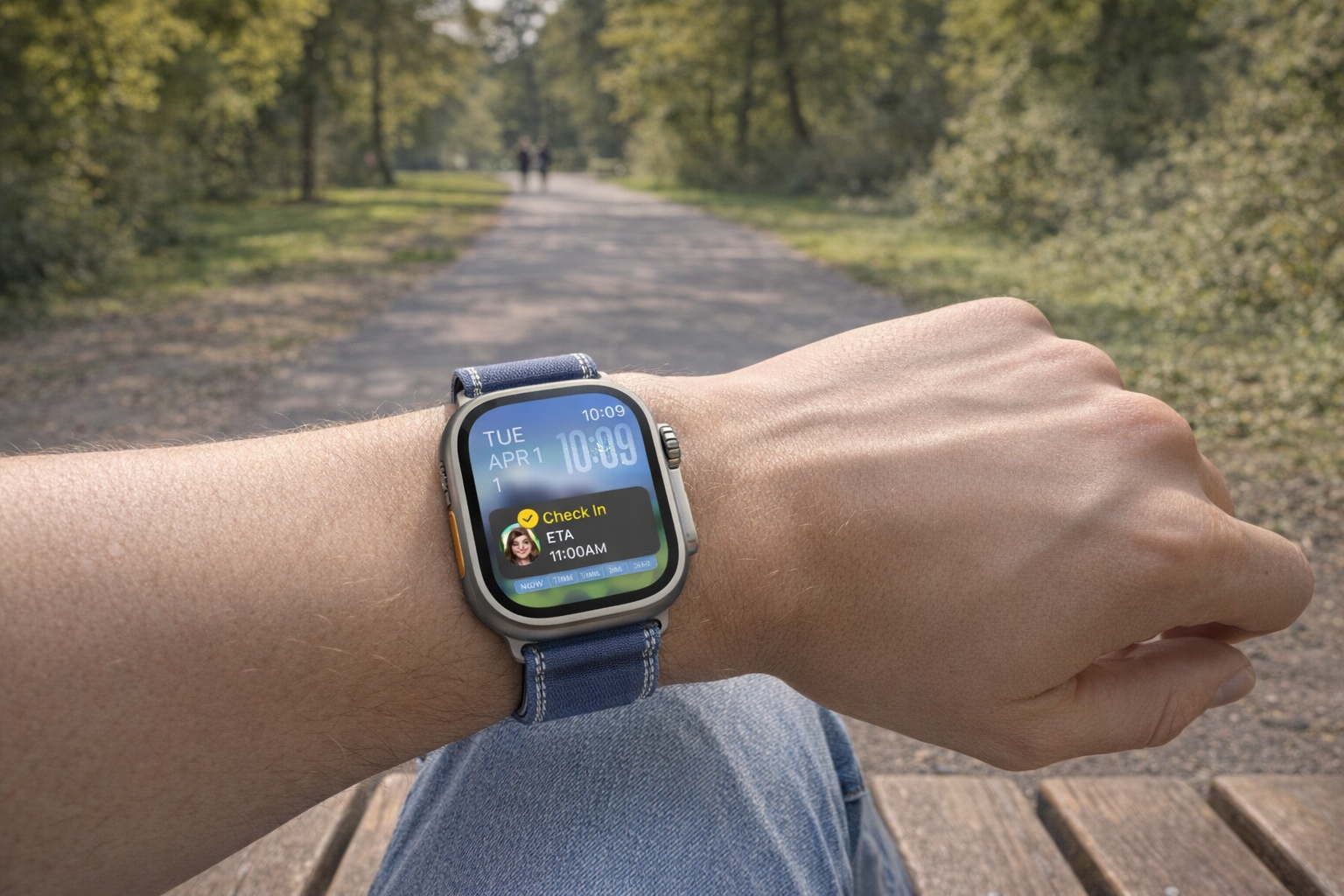
Apple Watch Fall Detection monitors your wrist for sudden impacts consistent with a hard fall, then taps your wrist, sounds an alarm, and displays an alert. If you don't respond and remain motionless for about one minute, the watch automatically calls emergency services and shares your location with your emergency contacts. It works on every Apple Watch Series 4 or later – including all SE models and the Ultra lineup – and the feature is off by default for most users under 55.
Compatible Apple Watch Models
Fall Detection requires an Apple Watch Series 4 or later. That includes:
- Apple Watch Series 4, 5, 6, 7, 8, 9, 10, and 11
- Apple Watch SE (1st, 2nd, and 3rd generation)
- Apple Watch Ultra, Ultra 2, and Ultra 3
If you're still wearing a Series 3 or earlier, Fall Detection is not available. An upgrade to the Apple Watch SE is the most affordable path to the feature.
How to Enable Fall Detection
Before You Start
Make sure these are in place:
- Wrist Detection is enabled. Go to Settings > Passcode > Wrist Detection on your Apple Watch. The watch won't automatically call emergency services without it.
- Your watch has connectivity. It needs a cellular connection, Wi-Fi Calling with internet access, or a nearby paired iPhone to contact emergency services. The Apple Watch Ultra 3 also supports emergency SOS via satellite.
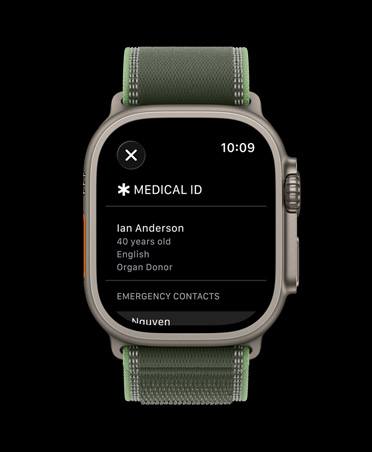
- Medical ID is set up (strongly recommended). Open the Health app on your iPhone and configure your Medical ID with emergency contacts. This is how the watch knows who to notify after a fall – while Fall Detection works without it, you'll miss the automatic emergency contact notifications.
From Your iPhone
- Open the Watch app and go to the My Watch tab.
- Tap Emergency SOS.
- Toggle Fall Detection on.
- Choose either Always On or Only During Workouts – see the section below for guidance on which to pick based on your age and activity level.
From Your Apple Watch
- Open Settings.
- Tap SOS.
- Tap Fall Detection and turn it on.
"Always On" vs. "Only During Workouts"
This is the most important setting choice, and it depends on your age and activity level.
Always On monitors for falls 24/7 – during walks, around the house, at work, everywhere. This is the right choice for anyone at elevated fall risk: older adults, people with balance disorders, or anyone living alone.
Only During Workouts limits detection to active workout sessions. This reduces false alarms for younger, active users who might trigger the feature during high-impact activities like construction work or contact sports.
Automatic Defaults
Apple sets these automatically based on your age:
- Age 55 and older: Fall Detection defaults to Always On when you set up the watch, as long as your age is entered during setup or in the Health app.
- Ages 18–54 (watchOS 8.1+): Only During Workouts is auto-enabled on new setups.
- Under 18: Fall Detection is not available.
You can override any default in the settings described above.
Setting Up Medical ID and Emergency Contacts
Fall Detection is most effective when your Medical ID is complete. This information is shared with emergency responders when the watch calls on your behalf.
- Open the Health app on your iPhone.
- Tap your profile picture, then tap Medical ID.
- Tap Edit and fill in:
- Emergency contacts (add at least two)
- Medical conditions
- Allergies and medications
- Blood type
- Enable Share During Emergency Call – this ensures the information transmits automatically when Fall Detection calls 911.
Emergency contacts receive a text message with your location after the watch places the call. This is separate from the 911 call itself and works even if the responders don't have your medical details.
What Happens When a Fall Is Detected
The sequence is designed to balance urgency with avoiding unnecessary emergency calls:
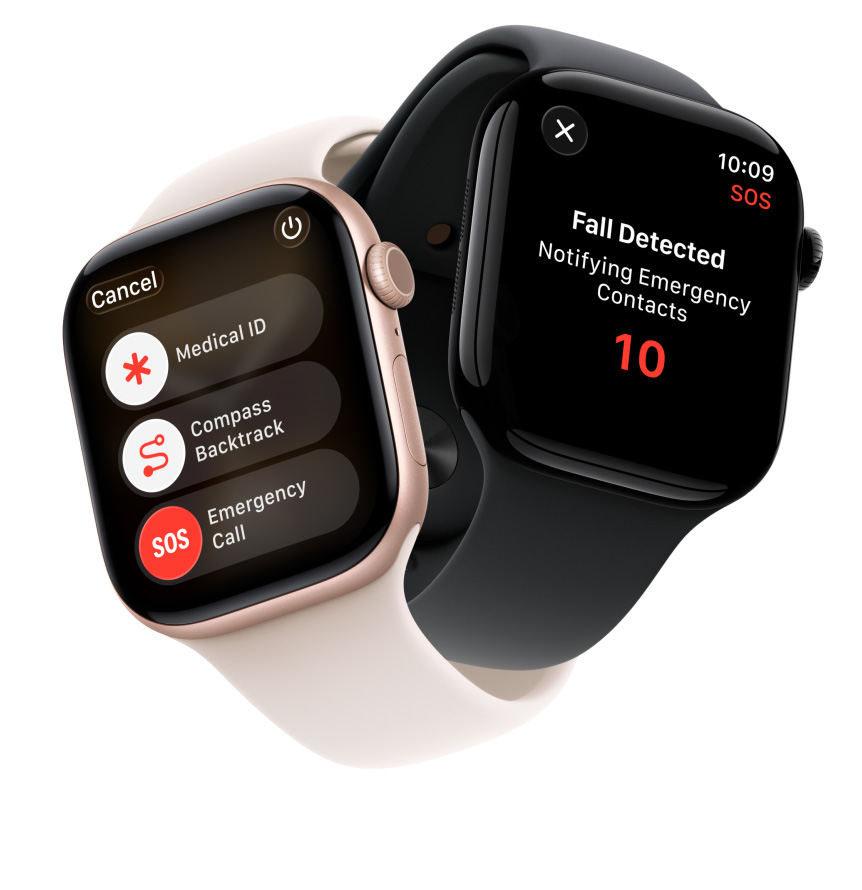
- Immediate alert. The watch taps your wrist firmly, sounds an alarm, and shows an on-screen alert asking if you've fallen.
- If you're okay: Tap "I'm OK" or "I Did Not Fall" to dismiss the alert. No call is made.
- If you need help: Tap "Emergency SOS" to call emergency services immediately.
- If you don't respond and remain motionless for about one minute: A 30-second countdown begins with escalating alerts – louder sounds and more forceful haptics. If you still don't respond, the watch calls emergency services automatically, sends your GPS location, and notifies your emergency contacts via text message with your location.
If the watch detects you're moving after the fall, it waits for your response rather than starting the automatic countdown. The auto-call only triggers when the watch detects both a hard fall and subsequent immobility.
How the Detection Technology Works
Understanding how the sensors work helps explain why the feature catches some falls and misses others.
Fall Detection combines data from multiple sensors:
- Accelerometer – Detects the sudden spike of impact consistent with a fall.
- Gyroscope – Tracks wrist orientation to determine the type of motion. A fall has a distinct rotational signature compared to, say, sitting down quickly.
The algorithm continuously analyzes movement patterns to distinguish genuine hard falls from stumbles, drops, and everyday jolts. It's specifically tuned for ambulatory falls – the kind where a person walking, standing, or climbing loses balance and hits a hard surface.
Fall Detection vs. Crash Detection
These are two separate safety features that work independently:
Fall Detection monitors for personal falls using the accelerometer and gyroscope. Available on Apple Watch Series 4 or later.
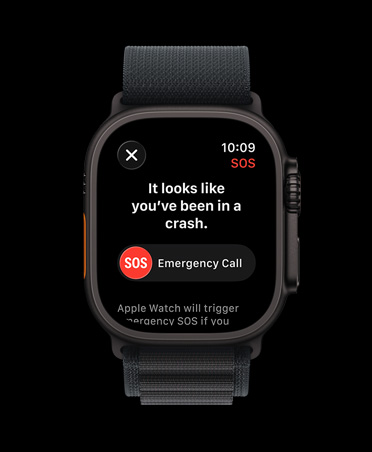
Crash Detection identifies severe car crashes using additional sensors – a high-g accelerometer (measuring up to 256 g), barometer, microphone, and GPS – to detect the unique signature of a vehicle collision. Available on Series 8 or later, Apple Watch SE (2nd generation or later), and all Ultra models.
Both can be active simultaneously. If you're in a car crash and then fall after exiting the vehicle, either feature could trigger independently.
Accuracy and Limitations
Fall Detection cannot detect all falls, and that limitation is worth understanding before you rely on it.
What it catches well: - Hard, sudden falls from standing or walking height - Falls where the wearer hits the ground with significant force - Falls followed by immobility
What it can miss: - Slow collapses or gradual slides to the ground - Falls that don't produce a sharp impact signature - Falls in wheelchairs – detection sensitivity for wheelchair-specific falls is only 4.7%, because the algorithm is designed for ambulatory falls, not seated ones. Fall Detection should not be relied on as a wheelchair fall detector.
There is no sensitivity adjustment. Fall Detection is binary – on or off. You cannot tune it to be more or less sensitive.
False alarms can happen. High-impact activity may trigger the feature. Common triggers include vigorous manual labor, animated hand gestures, and certain high-impact workout movements.
Tips for Reliability
Wear the watch snugly. A loose band reduces sensor accuracy. The watch needs solid skin contact to detect wrist movement patterns properly.
Keep the watch charged. Fall Detection only works when the watch is on and has battery remaining. If you're relying on it for safety, charge daily rather than pushing battery limits.
Choose the right mode. If you're an active person under 55 who does a lot of manual labor or high-impact activity, "Only During Workouts" prevents nuisance alerts. If you're at genuine fall risk, use "Always On" – the occasional false alarm is a minor inconvenience compared to a missed real fall.
Verify your emergency contacts periodically. Phone numbers change. Check your Medical ID every few months to make sure the contacts listed are current and reachable.
Practice dismissing the alert. Know where the "I'm OK" button appears on screen so you can dismiss false alarms quickly – before the countdown reaches zero and calls 911.
Enable cellular or keep your iPhone nearby. A GPS-only Apple Watch with no iPhone nearby and no Wi-Fi cannot place an emergency call. If independent safety coverage matters, a cellular Apple Watch model is worth the extra cost. For help choosing a cellular model, see our best smartwatches for 2026 guide.